Let clients pay invoices online
Your client opens the invoice link, taps Pay Now and sees Online Payments Not Available? That message means your shop has no payment gateway turned on yet. Stone Project does not collect money for you: the payment goes through your own account with a card processor, so you connect that account once and every invoice and deposit link starts taking payments.
Turn on a payment gateway
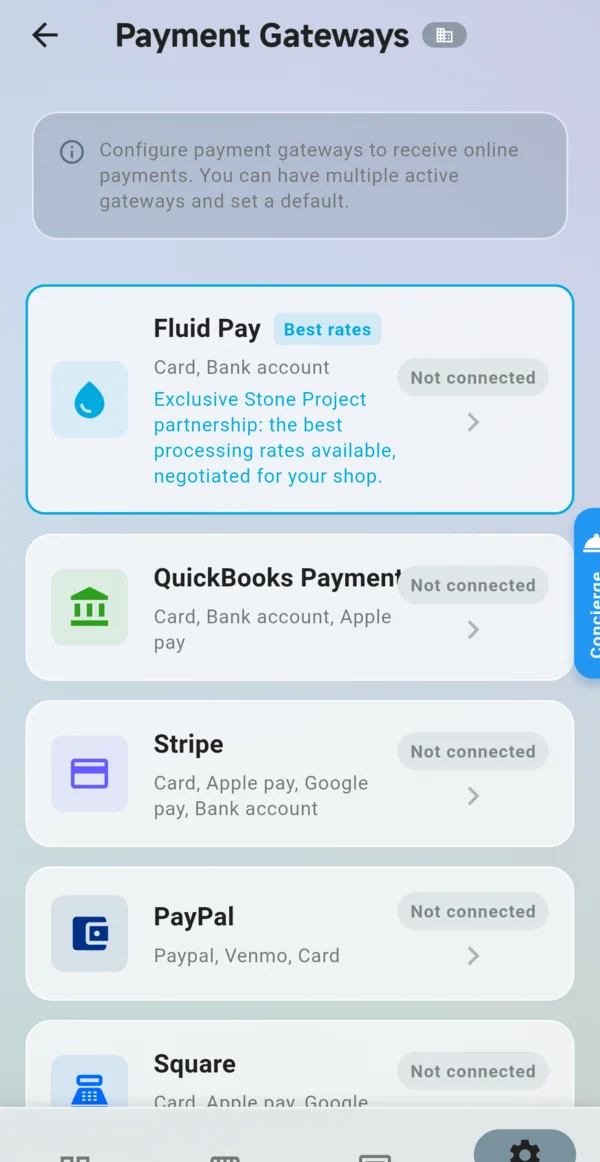
- Open Settings. In the Pricing & Payments section, tap Payment Gateways (or type "Payment Gateways" in Search settings...).
- The list shows every gateway and whether it is Connected or Not connected. Tap the one you have an account with: Fluid Pay, QuickBooks Payments, Stripe, PayPal, Square, Helcim, Finix, and, depending on your country, Clover, Mercado Pago or Yappy.
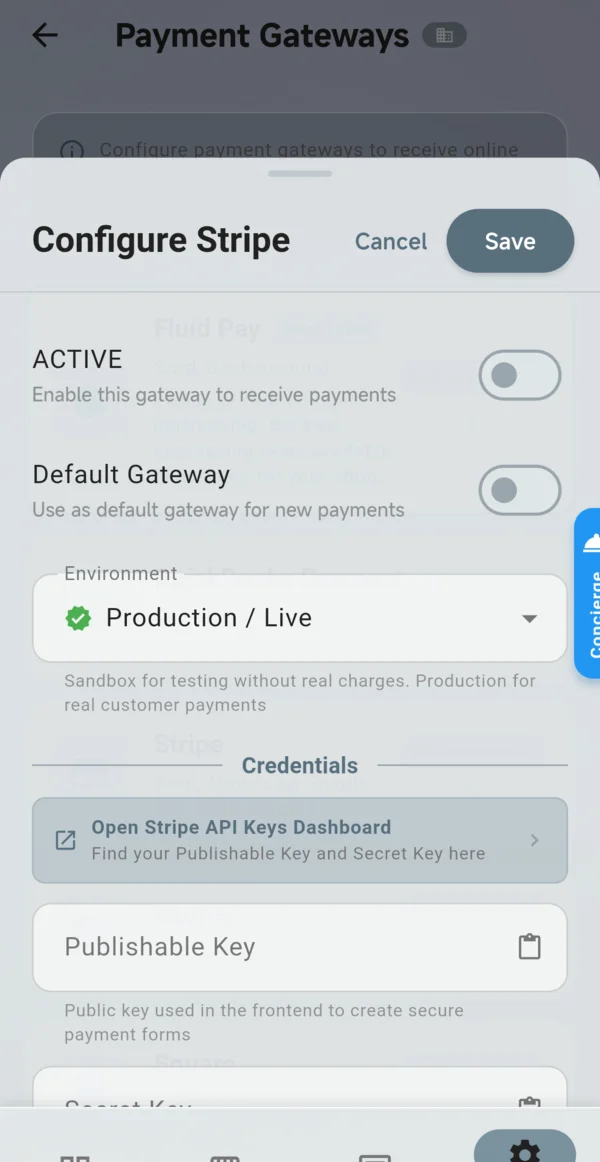
- Turn on ACTIVE and Default Gateway.
- In Environment, choose Production / Live. Sandbox / Test is only for trying it out: no real money moves.
- Fill in the credentials the form asks for. The button at the top of Credentials (for Stripe, Open Stripe API Keys Dashboard) opens the page in your processor's dashboard where those keys are.
- Tap Save. The card now shows Connected.
Step-by-step pages for gateways with extra setup: Clover (United States and Canada), Mercado Pago (Latin America) and Stripe local payment methods (OXXO, SEPA, iDEAL and others). QuickBooks Payments is turned on from the QuickBooks connection: see 14.1 QuickBooks Integration.
After you connect
- You do not need to send the invoice again. The link your client already has starts working: ask them to open it again and tap Pay Now. Send it again only if you changed the invoice.
- With more than one active gateway, client payments use the one marked Default Gateway.
- The money goes to your processor account, on its own fees and payout schedule. The payment is recorded on the invoice by itself, and the balance goes down.
- Settings > Payment Methods (Cash, Check, Zelle and so on) only lists the options printed on your invoices. It does not turn on online payment.
- To charge a card yourself, from the invoice in the app, see Charge card in 7.2 Managing Payment Methods. It uses the same gateway.
Still not working
- The card says Connected but the client still sees the message: open the gateway again and check that ACTIVE is on. A gateway that was saved with ACTIVE off does not take payments.
- The client pays but nothing shows up: you are probably on Sandbox / Test. Switch to Production / Live with your live keys. Test and live keys are different in every processor.
- The client sees the right amount? The link always shows the current balance of the invoice. If you recorded a check or a deposit before, record it in Stone Project first (Record Payment) so the client only pays what is left.